If you are experiencing playback interruptions while using Lark Player, such as songs or files stopping unexpectedly during playback, or the app pausing by itself when running in the background—for example, if you're listening to music with Lark Player and open a game or a news app, only to find that the playback suddenly stops while you're gaming or reading the news—don’t worry! The following methods might help resolve or minimize the issue. Please review the guidance provided in this FAQ and follow the steps one by one as instructed.
Method 1: Lock Lark Player App
To ensure smooth music playback in the background, please lock the Lark Player app. This will prevent the system from automatically closing it to save battery or memory.
Steps:
1. Tap the "Recent Apps" button on the far right of the bottom Navigation Bar to open the recent tasks.
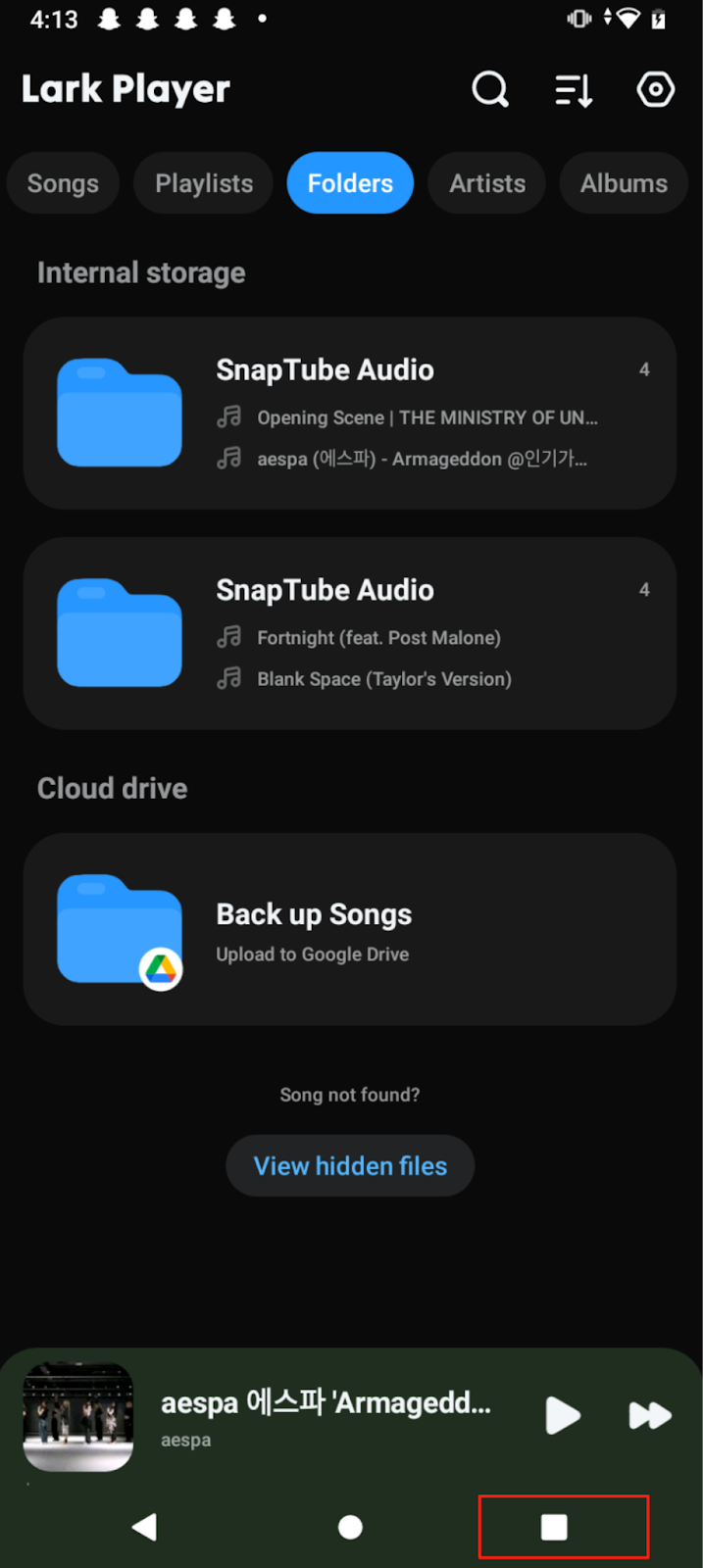
2. When you see the lock icon in the top right corner, it means it's unlocked. Press and hold the Lark Player screen, then swipe it down to lock it
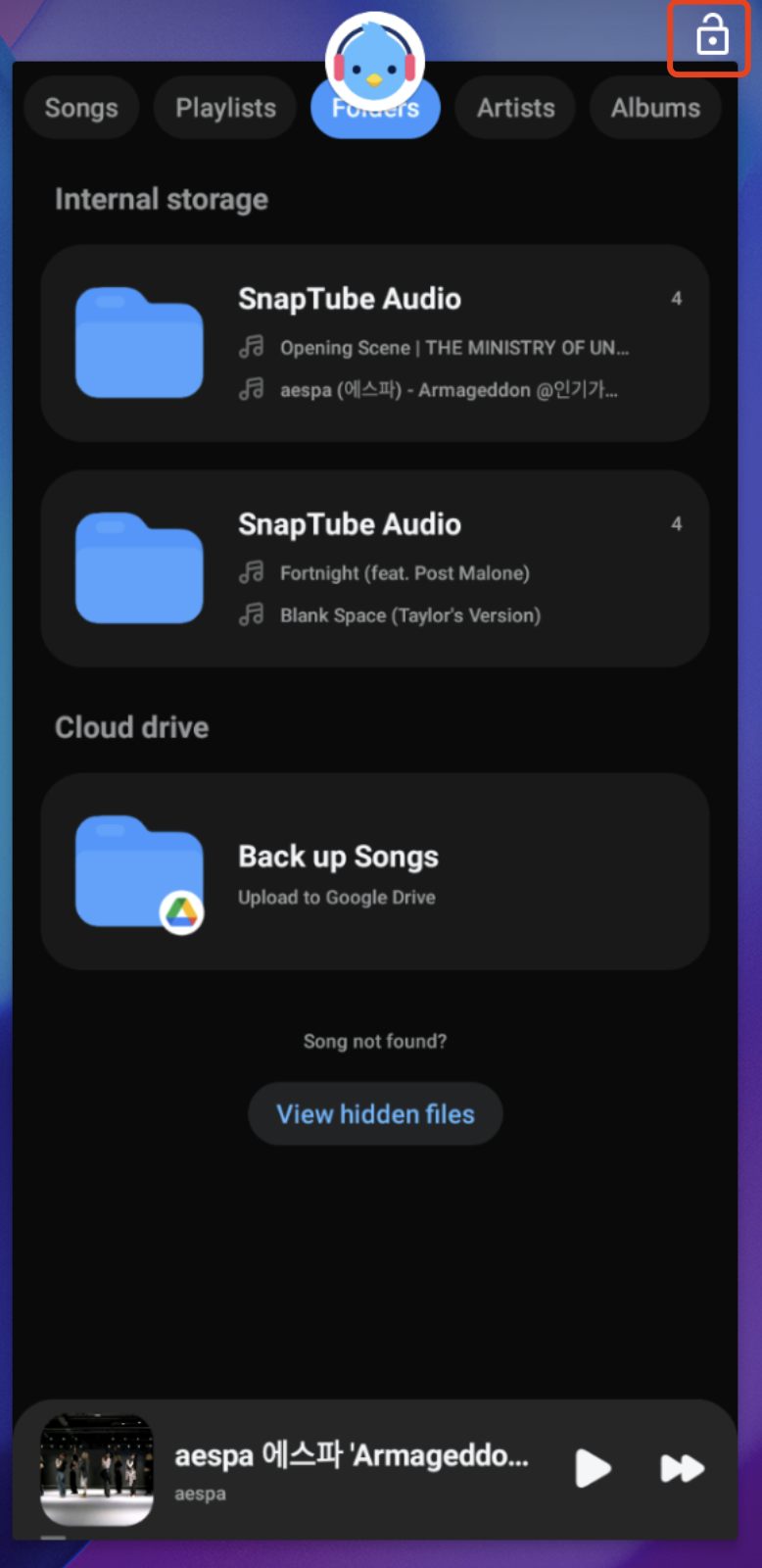
3. After locking, you’ll see the lock icon appear in the top right corner
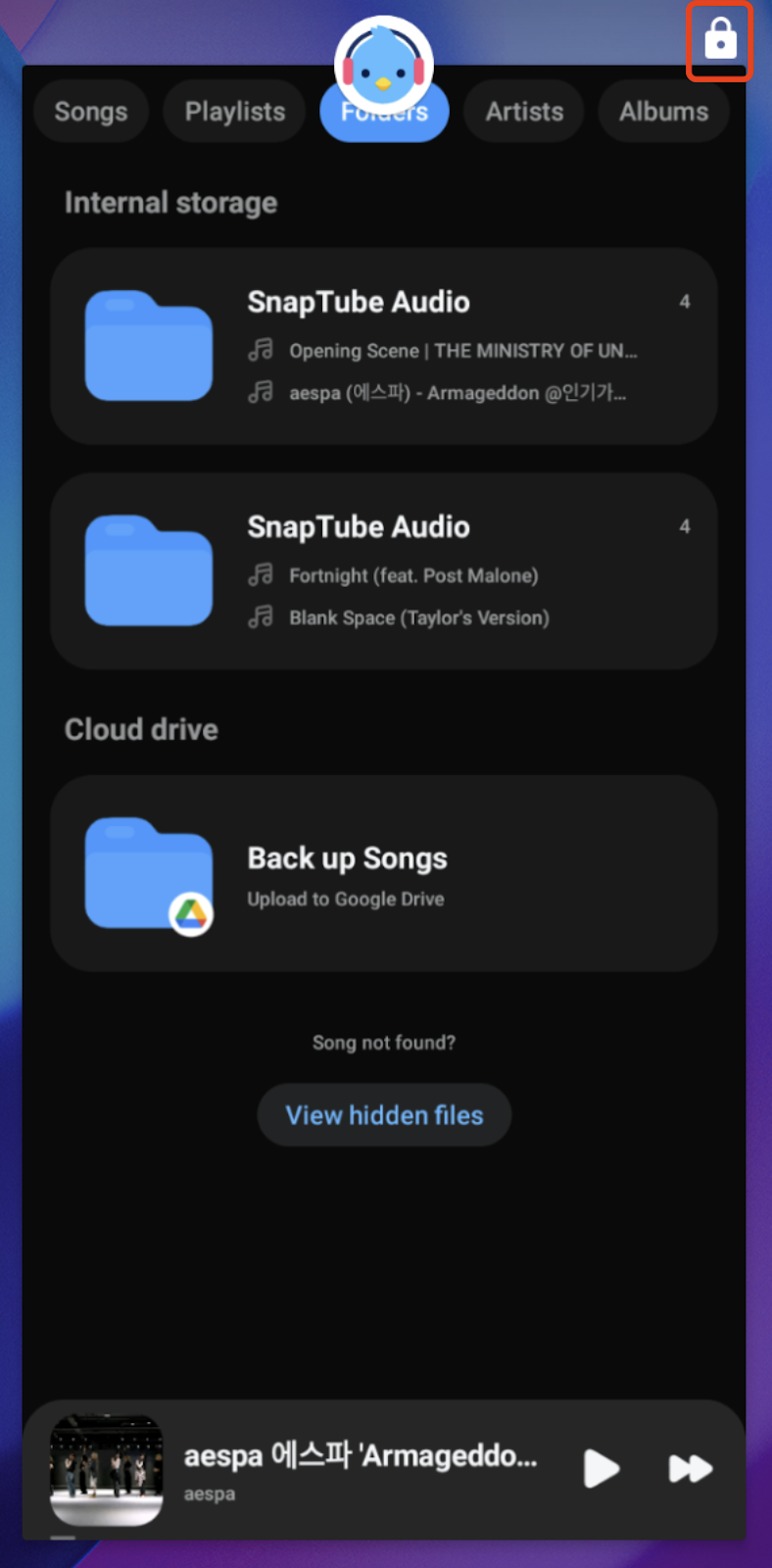
Now, Lark Player will stay running without interruptions.
Method 2: Battery Saver Doesn’t Restrict Lark Player
To make sure Lark Player keeps playing music without interruptions due to battery saver mode, set it to "Don’t optimize." This prevents the system from limiting the app’s background activity.
Steps:
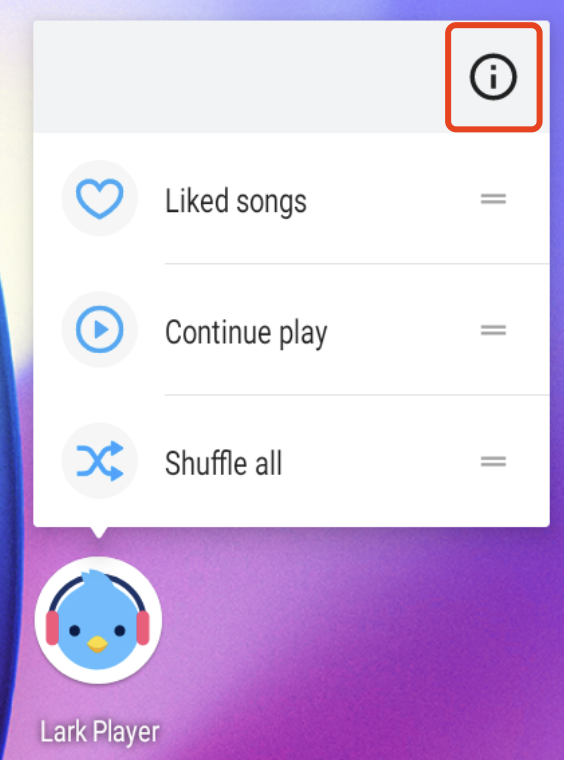
1. Long Press and hold the Lark Player icon, then tap the [i] icon in the top right corner to open the app information page
2. Tap "Advance" to see more options
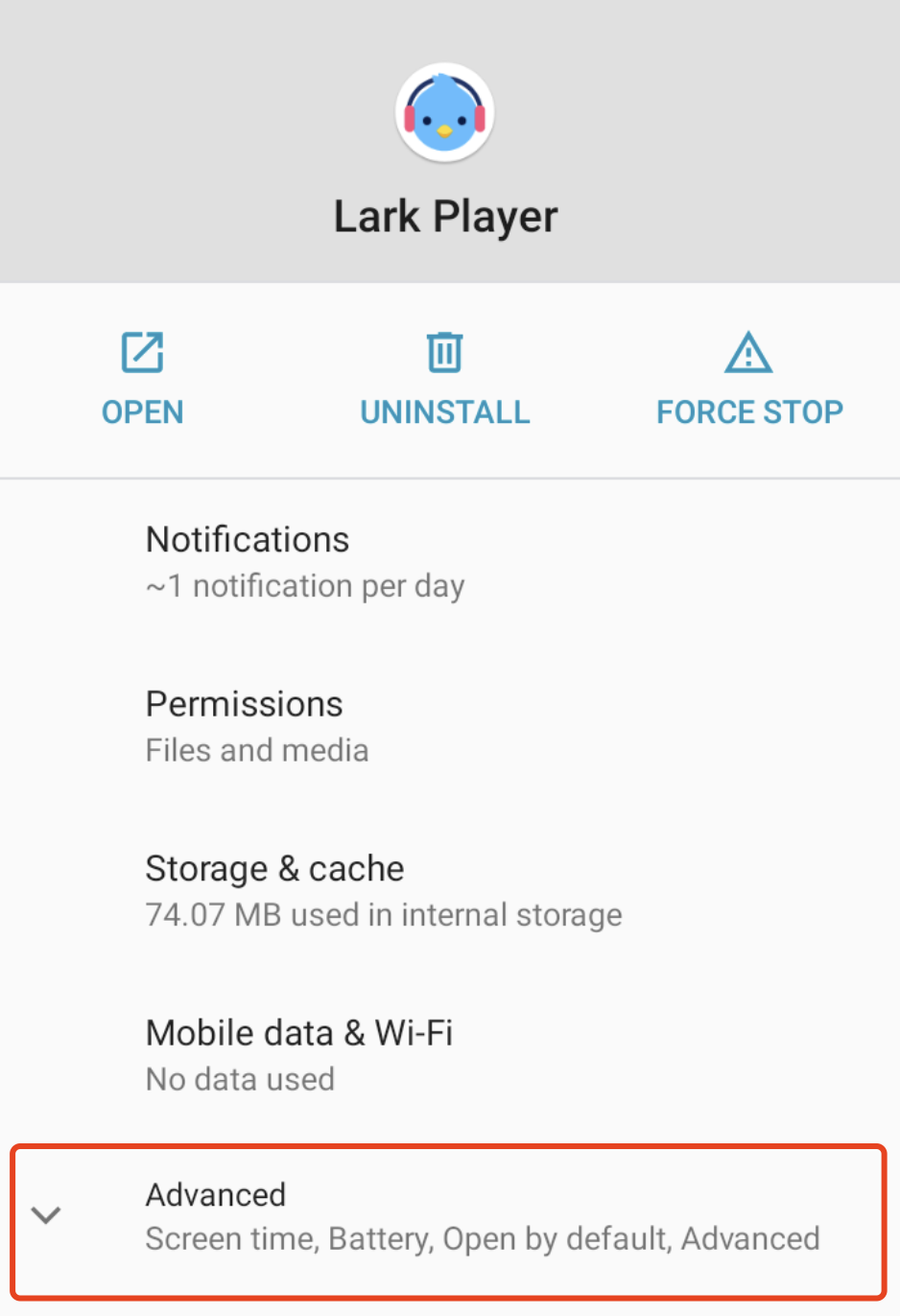
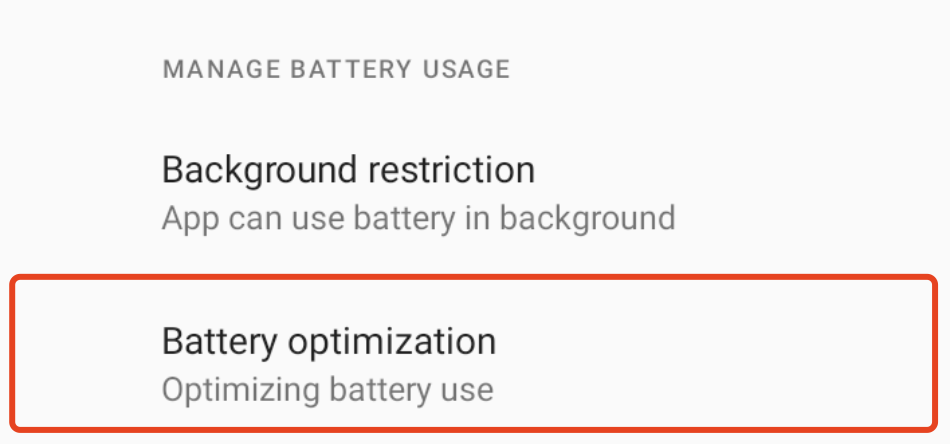
3. Go to "Battery"

4. Tap on "Battery Optimization"
5. Choose "All Apps"
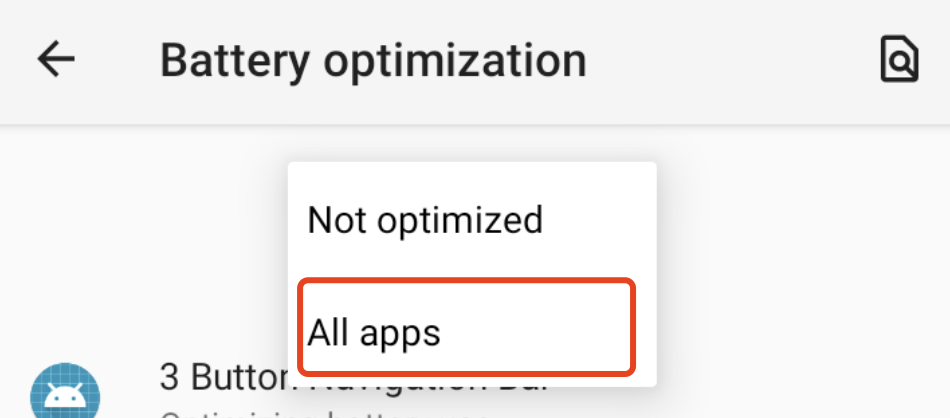
6. Find "Lark Player"

7. Select "Don’t optimize" and Tap "Done"
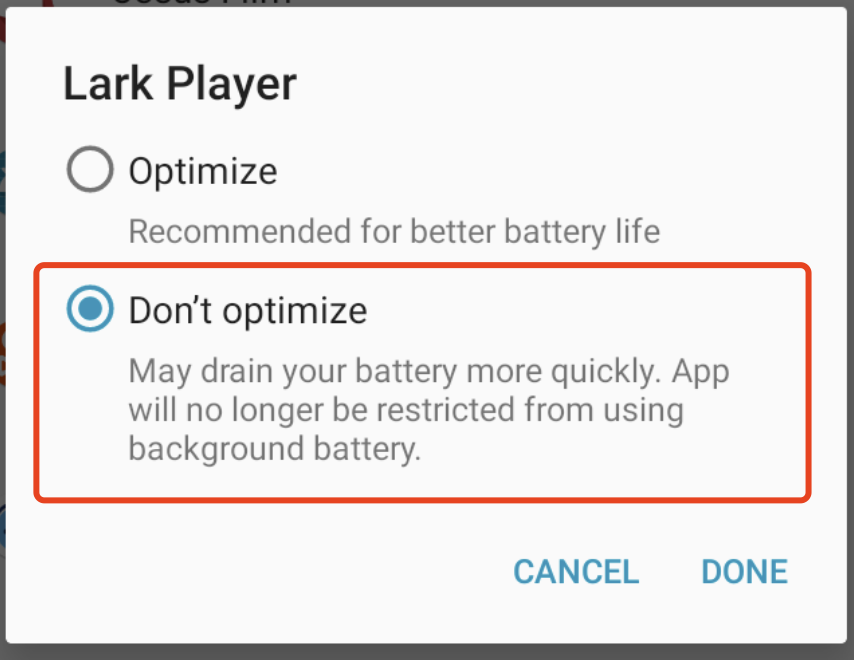
Now, Lark Player will continue playing music without being affected by battery saver.
If none of the above methods resolve the issue, or if the issue is fixed using these steps, please leave a comment on this article or let us know through the feedback option in the app. We’d love to hear if the problem was solved!
